


Features
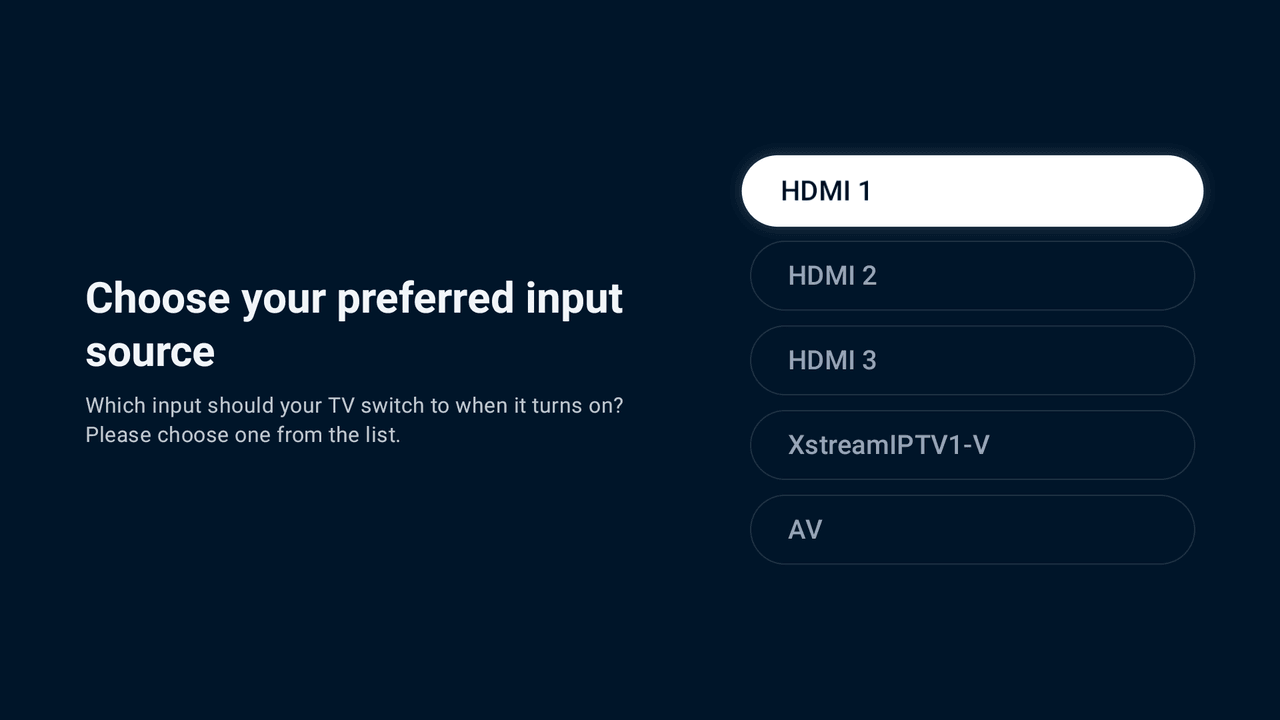
Choose any input
Restores the TV to your selected input after electricity cuts or restarts.
Handsfree Control
Free 7-Day Trial
Set Up Once in Minutes

Native TV App Integration
Installs directly on televisions running Android TV and Google TV.
Privacy Transparency
Read our full Privacy Policy →
Frequently Asked Questions
What does AutoHDMI do?
When you turn on your TV from scratch (like after plugging it in, a power cut, or restarting it), AutoHDMI automatically switches the screen to your favorite device (like an Apple TV, PlayStation, Xbox, or Fire Stick) so you do not have to navigate TV settings or remote inputs. It makes your Smart TV feel like a direct monitor for your favorite device!
How does this help elderly or non-technical family members?
Many people find it very difficult and frustrating to navigate complex TV menus and use remotes just to change the input. With AutoHDMI, you configure it once, and the TV will always start up directly on their favorite input. They do not need to touch the TV remote at all—the TV is just ready to watch!
Why does my smart TV go to the home screen after a power cut, and how do I fix it?
When power is restored after an outage, most Android TVs and Google TVs boot directly to their default home screen instead of the device you were watching. AutoHDMI fixes this. It detects the startup after a power cut and automatically switches the TV back to your selected HDMI input without you having to touch the remote.
Does AutoHDMI include a free trial?
Yes. AutoHDMI includes a seven-day free trial so you can try it on your TV.
Can I install this on my Nvidia Shield, Fire Stick, Mi Stick, or Apple TV?
No. AutoHDMI must be installed on the television's own built-in operating system. It does not work on, and should not be installed on, external set-top boxes, TV sticks, or Android boxes. AutoHDMI lives ON your TV itself, and its job is to switch the TV's input TO your external device.
Does this app work on Samsung, LG, or Roku TVs?
No. AutoHDMI is strictly for TVs with Android TV and Google TV built in (like Sony, Hisense, TCL, Philips). It does not work on Samsung Tizen, LG webOS, or Roku OS. If your TV does not have the official Google Play Store built in, this app cannot be installed.
Is my purchase shared across all TVs under my Google Account, or is it per device?
AutoHDMI lifetime licenses are linked to your specific television hardware device rather than just your Google Account. If you have multiple Smart TVs in your home, each TV requires its own lifetime license to unlock full auto-switching features.
Can I transfer my lifetime license if I buy a new TV or replace my old one?
Yes! If you upgrade your television, replace a damaged TV, or move to a new model, we will gladly transfer your existing lifetime license to your new TV free of charge. Because licenses are bound to hardware, transfers are handled directly by our support team upon request.
